
If the Data Encryption is not configured correctly can take to some problems even when you try to configure Dynamics CRM Outlook Client.
You will get this error message when trying to access Settings -> Data Management -> Data Encryption:
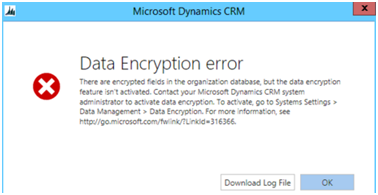
So if you didn’t configure and you have a new version of CRM 2013/2015 or you’re going to migrate to a new version and going to import the Organization, you should have the Data Encryption Key Activated.
The method to access it (if you can’t access) is to use the https configuration to have the SSL active and then you can access it, but maybe you don’t want to do it. If so, you’ll need to change a flag in the MSCRM_CONFIG database.
To do that you’ll need to do the following steps:
– Open SQL Server Management Studio.
– Click New Query and select MSCRM_CONFIG database.
– Run the command:
UPDATE DeploymentProperties SET BitColumn = 1 WHERE ColumnName = 'DisableSSLCheckForEncryption'
– IISRESET
If you want to confirm before what the value of the flag is, just do:
SELECT BitColumn FROM DeploymentProperties WHERE ColumnName = 'DisableSSLCheckForEncryption'
Now you can access the Data Encryption option and can activate the Encryption key.
Afterwards if you want to put the value of the BitColumn to the previous value, you’ll just need to update the table again.
Hope this helps.


 World of an IT guy