CRM Outlook Client and Dynamics CRM Online 2015 with Server Side Sync

The other day we had a problem with the CRM and the Outlook synchronization, because the emails used in the Outlook and the login in the CRM “were different”.
In this case, a group of companies use the same office365 that has a unique domain, for instance “@abc.com” and this is the domain used for login in CRM. On the other hand, the email that is used in Outlook is “@xyz.com”, this is because even the domain of the office365 is the same, there is a configuration at the Exchange level that since there are different companies and they want to use different outgoing emails (“@xyz.com”).
The emails sended to “@abc.com” and “@xyz.com” are received in the same mailbox (“@xyz.com”).
When you have the users from office 365 and CRM, the domain name (login) and the primary email are the same …”@abc.com” and an article of Microsoft says that the email address between office 365 and CRM must be the same.

http://www.microsoft.com/en-US/dynamics/crm-customer-center/the-outlook-email-address-should-be-the-same-as-the-CRM-email-address.aspx

Since the emails weren’t the same, the synchronization wasn’t made and the appointments, tasks, etc weren’t passed to the Outlook or vice-versa.
We were thinking that if we changed the primary email to the company email (“@xyz.com”) that might get it working but not knowing if it would do something wrong.
So we changed the email to the “@xyz.com”, made a test in one of the users and it was all ok, we had to change from the Server Side Sync to the Microsoft Outlook Client in the Email configuration.

Hope this helps!

XrmServiceToolKit – Associate, Disassociate, Fetch, etc

Well, sometimes we need to do some code in Javascript instead of Plugins C#.

So here is a way to Associate a relationship, in my case it was a N:N between quote and opportunity.

First of all I will search if the relation already exists and after I’ll create the relation (if doesn’t exists).

Associate:

var fetch =
“<fetch mapping=’logical’>” +
“<entity name=’RelationshipName’>” +
“<all-attributes />” +
“<filter>” +
“<condition attribute=’opportunityid’ operator=’eq’ value='” + opportunityId + “‘ />” +
“<condition attribute=’quoteid’ operator=’eq’ value='” + quoteId + “‘ />” +
“</filter>” +
“</entity>” +
“</fetch>”;

var retrieve = XrmServiceToolkit.Soap.Fetch(fetch);
if (retrieve.length == 0)
{
var quote = new XrmServiceToolkit.Soap.BusinessEntity(“quote”, quoteId);
var relatedQuotes = new Array();
relatedQuotes[0] = quote;
var response = XrmServiceToolkit.Soap.Associate(“RelationshipName”, “opportunity”, opportunityId, “quote”, relatedQuotes);
}

The same logic can be applied for the Disassociate, search for the record first to see if exists, and if exists (retrieve.length > 0) disassoaciate it.

Disassociate:

var account = new XrmServiceToolkit.Soap.BusinessEntity(“account”, accountId);
var relatedAccounts = new Array();
relatedAccounts[0] = account;
var response = XrmServiceToolkit.Soap.Disassociate(“RelationshipName”, “contact”, contactId, “account”, relatedAccounts);

Fetch:

var fetch =
“<fetch mapping=’logical’>” +
“<entity name=’contact’>” +
“<all-attributes />” +
“<filter>” +
“<condition attribute=’contactid’ operator=’eq’ value='” + contactId + “‘ />” +
“</filter>” +
“</entity>” +
“</fetch>”;

var retrieve = XrmServiceToolkit.Soap.Fetch(fetch);

if(retrieve.length > 0)

{

var contactName = retrieve[0].attributes.fullname.value; //String

var account = retrieve[0].attributes.accountid.id //Lookup

}

Delete:

var deleteResponse = XrmServiceToolkit.Soap.Delete(“contact”, contactId);

SetState:

var response = XrmServiceToolkit.Soap.SetState(“contact”, contactId, 1, 2);

QueryByAttribute:

I prefer to query with fetch.

var queryOptions = {
entityName: “contact”,
attributes: [“firstname”, “middlename”, “lastname”],
values: [“John”, “<&>”, “Snow”],
columnSet: [“firstname”, “lastname”, “middlename”, “familystatuscode”, “ownerid”, “creditlimit”, “birthdate”, “donotemail”, “donotphone”],
orderby: [“firstname”, “lastname”] // Order by firstname and then lastname even though we are only getting one record back
};

var fetchedContacts = XrmServiceToolkit.Soap.QueryByAttribute(queryOptions);

Change Lookup Text – Originating Lead field

Some clients like to have other text shown on the lookup fields, that’s the example on the Originating Lead field that links a Lead to an Opportunity (and Accounts and Contacts), because the lookup field in the Opportunity shows the Contact name (if the contact field is filled in the Lead), if not, then the lookup field appears to be empty.

So this is a code that will allow you to change the text to anything that you want/need. In our case it was the name of the Lead (subject field).

function ChangeLookUpDisplayValue()
{
 var lookupData = new Array();
 var lookupItem= new Object(); 
 
 if(Xrm.Page.getAttribute("originatingleadid") != null)
 {
   var lookup = Xrm.Page.getAttribute("originatingleadid").getValue(); 
 
   if (lookup != null)
   {
     lookupItem.id = lookup[0].id; 
     lookupItem.typename = lookup[0].typename;
     var displayvalue='';
 
     var fetchXml =
       "<fetch mapping='logical'>" +
        "<entity name='lead'>" +
         "<attribute name='subject'/>" +
        "<filter>" +
         "<condition attribute='leadid' operator='eq' value='" + lookupItem.id + "' />" +
        "</filter>" +
        "</entity>" +
       "</fetch>";

     var retrievedLead = XrmServiceToolkit.Soap.Fetch(fetchXml);
 
     if(retrievedLead != null)
     {
       if (retrievedLead.length == 1)
       {
          displayvalue = retrievedLead[0].attributes['subject'].value;
          lookupItem.name = displayvalue;
          lookupData[0] = lookupItem;
 
          Xrm.Page.getAttribute("originatingleadid").setValue(lookupData);
       }
     }
   }
  }
 }

Hope this helps.

User does not have send-as privilege for. – CRM 2015

Our client started to use the Server Side Sync via CRM and have some workflows that send emails.
The field From in the email is a system user (Admin) that sends emails to users. We thought that adding the the option to “send as” would work but, actually didn’t.user-options

email-send-as-option

So we decided to add the option in the Security Rolls that allows to send email as another user (Business Management -> Miscellaneous Privileges)

security-role-email

This allowed the email to be created and sended from CRM.


Hope this helps!

N:N Relationship Create record problem with Dynamics CRM 2013

Problem: When we create a record on a N:N relationship, it gives error:

Duplicate Error

And when you download the log fixe the message is:

<Message>Cannot insert duplicate key.</Message>


We have a customer who has a CRM 4.0 update for CRM 2011 and then to CRM 2013. Dev environment have a subgrid that was created from a relationship N: N, because we wanted to have associated records, but did not want that to disassociate, and then eliminate the records.
We identified that when we have the CRM 2013 (no updates) or UR1, UR2 did not fix the problem.
Our customer’s IT department usually does all application installations and when we had the environment with CRM 2013, they installed SP1 and UR1 of SP1.
We continued to check and this would only be resolved with UR3, but when we identified the problem, the server was already with the SP1 and was no longer possible to install UR3. Not even with the UR2 of SP1 resolved this situation. And now the it isn’t possible to install the UR3 (CRM version doesn’t allow it).

So to resume, if you are installing a server, make sure that you install all the Update Rollups, or you might face a problema like this, because some Service Pack doesn’t have the latest features.

Hope this helps.

Data Encryption CRM 2013-2015

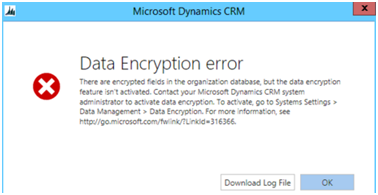
If the Data Encryption is not configured correctly can take to some problems even when you try to configure Dynamics CRM Outlook Client.

You will get this error message when trying to access Settings -> Data Management -> Data Encryption:

Data-Encryption-feature

So if you didn’t configure and you have a new version of CRM 2013/2015 or you’re going to migrate to a new version and going to import the Organization, you should have the Data Encryption Key Activated.

The method to access it (if you can’t access) is to use the https configuration to have the SSL active and then you can access it, but maybe you don’t want to do it. If so, you’ll need to change a flag in the MSCRM_CONFIG database.

To do that you’ll need to do the following steps:

– Open SQL Server Management Studio.
– Click New Query and select MSCRM_CONFIG database.
– Run the command:

UPDATE DeploymentProperties SET BitColumn = 1 WHERE ColumnName = 'DisableSSLCheckForEncryption'

– IISRESET

If you want to confirm before what the value of the flag is, just do:

SELECT BitColumn FROM DeploymentProperties WHERE ColumnName = 'DisableSSLCheckForEncryption'

Now you can access the Data Encryption option and can activate the Encryption key.

Afterwards if you want to put the value of the BitColumn to the previous value, you’ll just need to update the table again.

Hope this helps.

Security Role permission for Products – CRM 2015

A few days ago a client had the upgrade scheduled from CRM 2013 to CRM 2015 online, and when they wanted to create an opportunity product (not with the standard relation but with a new relation that we created so it only appear the existing product selected), it wasn’t possible because the new permissions weren’t configured.

We had to go to the profile role of the users that couldn’t access and then add the read permissions to the profile:

property_access


It was also necessary to add the permission to be calculated by the system, because this was not configured for.
Going to Settings -> Administration -> System Settings in the Sales tab has the following option that should be Yes.

set_pricing_calc

This might help someone later!

Show/Hide Ribbon Button using Enable Rule

If you want to show/hide a ribbon button, but you are having problems because of the load/save events that sometimes makes the show/hide not work correctly, this is the best way I found to get the job done.

Just need to add this bit of code in the RibbonDiffXml in the extracted solution of the entity you want to add (or already have) the button, in the customization.xml file.

<CommandDefinitions>
 <CommandDefinition Id="Mscrm.Form.entity.name"> <!--button id-->
 <EnableRule Id="entity.functionName.EnableRule" />
 <DisplayRules />
 <Actions>
 <JavaScriptFunction FunctionName="markopportunityasgo" Library="$Webresource:cst_Opportunity2013" />
 </Actions>
 </CommandDefinition>
 </CommandDefinitions>

<EnableRules>
 <EnableRule Id="entity.functionName.EnableRule">
 <CustomRule FunctionName="javascriptFunction" Library="$webresource:javascriptFileName">
 <CrmParameter Value="PrimaryItemIds" /> <!--get entity id-->
 </CustomRule>
 </EnableRule>
 </EnableRules>
//Javascript function that get the entity id. If gives error, you can remove it from the funtion
function javascriptFunction(id)
{
 //Logic
 return true; //shows button
}

Create/Update Entity records using XrmServiceToolKit.Soap

If you want to create or update a record using the XrmServiceToolKit Soap and don’t know how to do it for all the field types, here is some code that might help you.

//Create Entity
var entity = new XrmServiceToolkit.Soap.BusinessEntity("EntityName");
//String
entity.attributes["fieldName"] = Xrm.Page.getAttribute("fieldName").getValue();

//Lookup
entity.attributes['fieldName'] = { id : Xrm.Page.getAttribute('fieldName').getValue()[0].id, logicalName : Xrm.Page.getAttribute('fieldName').getValue()[0].entityType, type : 'EntityReference' };

//Bool
entity.attributes["fieldName"] = Xrm.Page.getAttribute("fieldName").getValue();

//OptionSetValue
entity.attributes["fieldName"] = { value: Xrm.Page.getAttribute("fieldName").getValue(), type: "OptionSetValue" };

//Currency
entity.attributes["fieldName"] = { Value: Xrm.Page.data.entity.attributes.get("fieldName").getValue() };

//Decimal
entity.attributes["fieldName"] = { Value: parseFloat(eval(Xrm.Page.data.entity.attributes.get("fieldName").getValue())) };

entity.attributes["fieldName"] = { Value: 2, type: "int"}; 

entity.attributes["fieldName"] = { Value: 1.5617, type: "double" }; 

var quoteId;
quoteId = XrmServiceToolkit.Soap.Create(entity);

//Update Entity
var updateEntity = new XrmServiceToolkit.Soap.BusinessEntity("EntityName", entityGuid);
//Lookup to update
updateEntity.attributes["fieldName"] = { id : entityGuid, logicalName : 'entityName', type : 'EntityReference' };
//OptionSet
updateEntity.attributes["fieldName"] = { value : Value, type : 'OptionSetValue' };
//Currency
updateEntity.attributes["fieldName"] = { value : Value, type : 'Money' };
//Boolean
updateEntity.attributes["fieldName"] = { value : true/false, type: 'boolean' };
//String
updateEntity.attributes["fieldName"] = "Value";

updateEntity.attributes["fieldName"] = { Value: 2, type: "int"}; 

updateEntity.attributes["fieldName"] = { Value: 1.5617, type: "double" }; 

</pre>
<pre>var updateResponse = XrmServiceToolkit.Soap.Update(updateEntity ); 

Run a Workflow from a Button in the Ribbon

The other day a colleague asked me if I could help because it was necessary to run a CRM worflow from a button. So after a little bit of search on the web, with some test of some scripts, I’ve got the solution that worked for our case.

You will only need to set the guid of the Workflow that you want to run (workflowGuid) and entityId on which the Workflow was created and make the javascript to run from the button or event on the form.

Hope this helps!

function TriggerWorkflow(entityId, workflowGuid) {
var url = Xrm.Page.context.getServerUrl();
var OrgServicePath = "/XRMServices/2011/Organization.svc/web";
url = url + OrgServicePath;
var request;

request = "xmlns:s=\'http://schemas.xmlsoap.org/soap/envelope/\'>" +
"<s:Body>" +
"xmlns=\'http://schemas.microsoft.com/xrm/2011/Contracts/Services\' xmlns:i=\'http://www.w3.org/2001/XMLSchema-instance\'>" +
"i:type=\'b:ExecuteWorkflowRequest\' xmlns:a=\'http://schemas.microsoft.com/xrm/2011/Contracts\' xmlns:b=\'http://schemas.microsoft.com/crm/2011/Contracts\'>" +
"xmlns:c=\"<a href="http://schemas.datacontract.org/2004/07/System.Collections.Generic/">http://schemas.datacontract.org/2004/07/System.Collections.Generic\</a>">" +
"<a:KeyValuePairOfstringanyType>" +
"<c:key>EntityId</c:key>" +
"i:type=\'d:guid\' xmlns:d=\'http://schemas.microsoft.com/2003/10/Serialization/\'>" + <strong>entityId</strong> + "</c:value>" +
"</a:KeyValuePairOfstringanyType>" +
"<a:KeyValuePairOfstringanyType>" +
"<c:key>WorkflowId</c:key>" +
"i:type=\'d:guid\' xmlns:d=\'http://schemas.microsoft.com/2003/10/Serialization/\'>" + <strong>workflowGuid</strong> + "</c:value>" +
"</a:KeyValuePairOfstringanyType>" +
"</a:Parameters>" +
"<a:RequestId i:nil=\'true\' />" +
"<a:RequestName>ExecuteWorkflow</a:RequestName>" +
"</request>" +
"</Execute>" +
"</s:Body>" +
"</s:Envelope>";

var req = new XMLHttpRequest();
req.open("POST", url, false)

// Responses will return XML. It isn't possible to return JSON.
req.setRequestHeader("Accept", "application/xml, text/xml, */*");
req.setRequestHeader("Content-Type", "text/xml; charset=utf-8");
req.setRequestHeader("SOAPAction", "<a href="http://schemas.microsoft.com/xrm/2011/Contracts/Services/IOrganizationService/Execute">http://schemas.microsoft.com/xrm/2011/Contracts/Services/IOrganizationService/Execute</a>");

req.onreadystatechange = function () { assignResponse(req); }; //Alert to validate if the workflow ran. Method bellow.

req.send(request);
}

function assignResponse(req) {
if (req.readyState == 4)
{
  if (req.status == 200)
  {
    alert('successfully executed the workflow');
  }
  else
  {
     alert(req.status);
  }
}
}